> ## Documentation Index
> Fetch the complete documentation index at: https://docs.fedapay.com/llms.txt
> Use this file to discover all available pages before exploring further.
# User Documentation – TAP & GO
### What is TAP & GO?
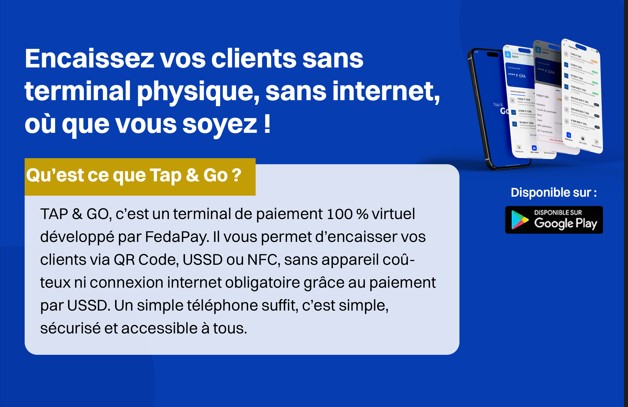 ### What is TAP & GO used for?
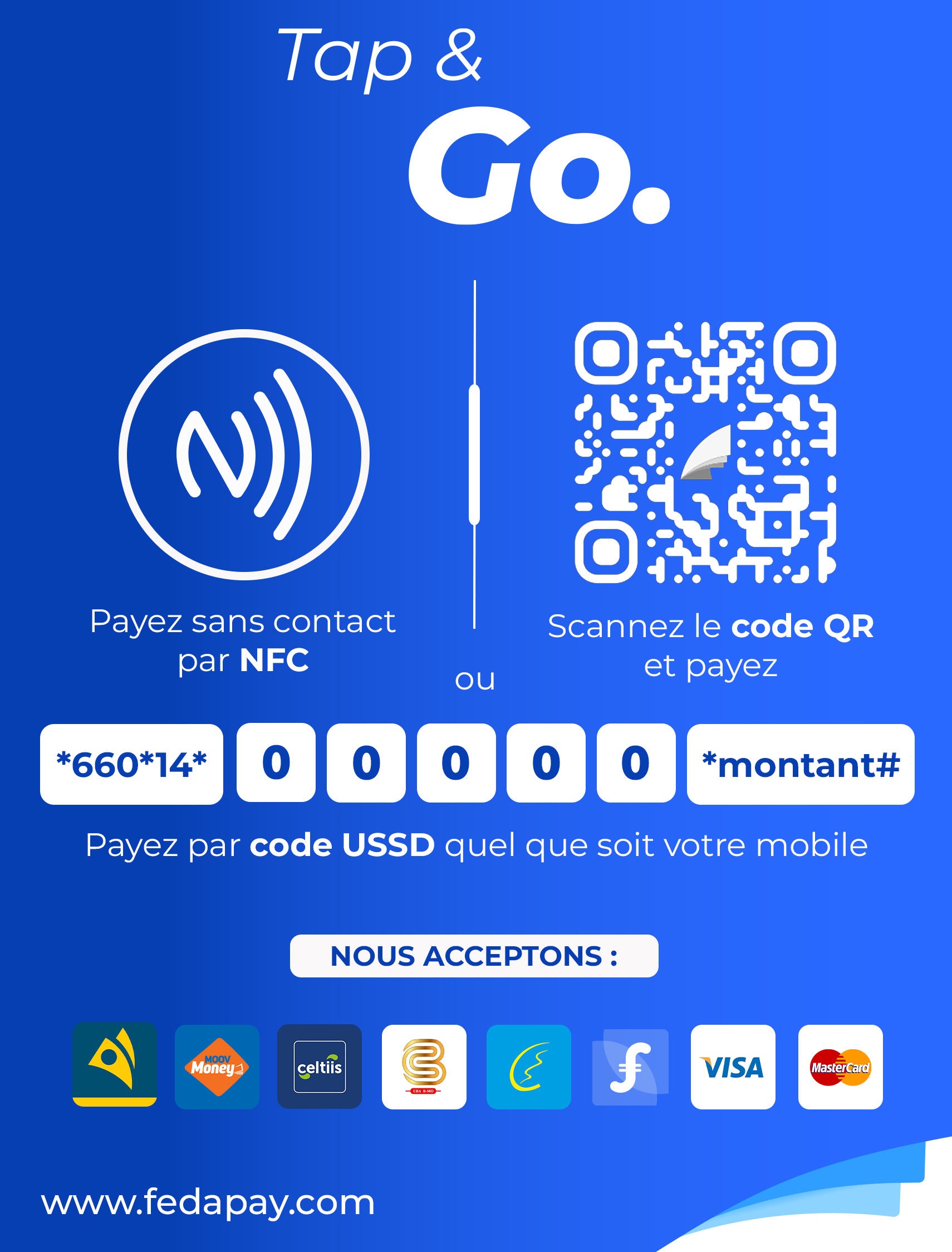 With TAP & GO, you can:
* collect payments from your customers easily via QR Code, USSD, or NFC, without a physical terminal or expensive equipment;
* offer a simple, fast, and modern payment experience;
* collect payments even **without an internet connection** via USSD;
* track your transaction history in real time;
* receive your payments automatically into your Mobile Money account within 24 hours;
* available payment methods (Benin): Mobile Money (MTN Money, Moov Money, Celtiis Cash, BMO, Coris Money, MyFeda) and bank cards (Visa, Mastercard).
### Who can use TAP & GO and how?
**1. If you already have a FedaPay account (online merchants or e-commerce businesses)**
TAP & GO becomes an additional feature to activate in your FedaPay dashboard. It allows you to collect payments from customers via QR Code or USSD.
**Activation:**
* Log in to your FedaPay dashboard.
* Go to the menu in your dashboard to activate TAP & GO.
* Contact support at: [support@fedapay.com](mailto:support@fedapay.com) to finalize the activation.
Once activated, a QR Code and USSD payment interface is added to your dashboard.
**2. If you are a physical merchant**
With TAP & GO, you can:
* collect payments from your customers easily via QR Code, USSD, or NFC, without a physical terminal or expensive equipment;
* offer a simple, fast, and modern payment experience;
* collect payments even **without an internet connection** via USSD;
* track your transaction history in real time;
* receive your payments automatically into your Mobile Money account within 24 hours;
* available payment methods (Benin): Mobile Money (MTN Money, Moov Money, Celtiis Cash, BMO, Coris Money, MyFeda) and bank cards (Visa, Mastercard).
### Who can use TAP & GO and how?
**1. If you already have a FedaPay account (online merchants or e-commerce businesses)**
TAP & GO becomes an additional feature to activate in your FedaPay dashboard. It allows you to collect payments from customers via QR Code or USSD.
**Activation:**
* Log in to your FedaPay dashboard.
* Go to the menu in your dashboard to activate TAP & GO.
* Contact support at: [support@fedapay.com](mailto:support@fedapay.com) to finalize the activation.
Once activated, a QR Code and USSD payment interface is added to your dashboard.
**2. If you are a physical merchant**
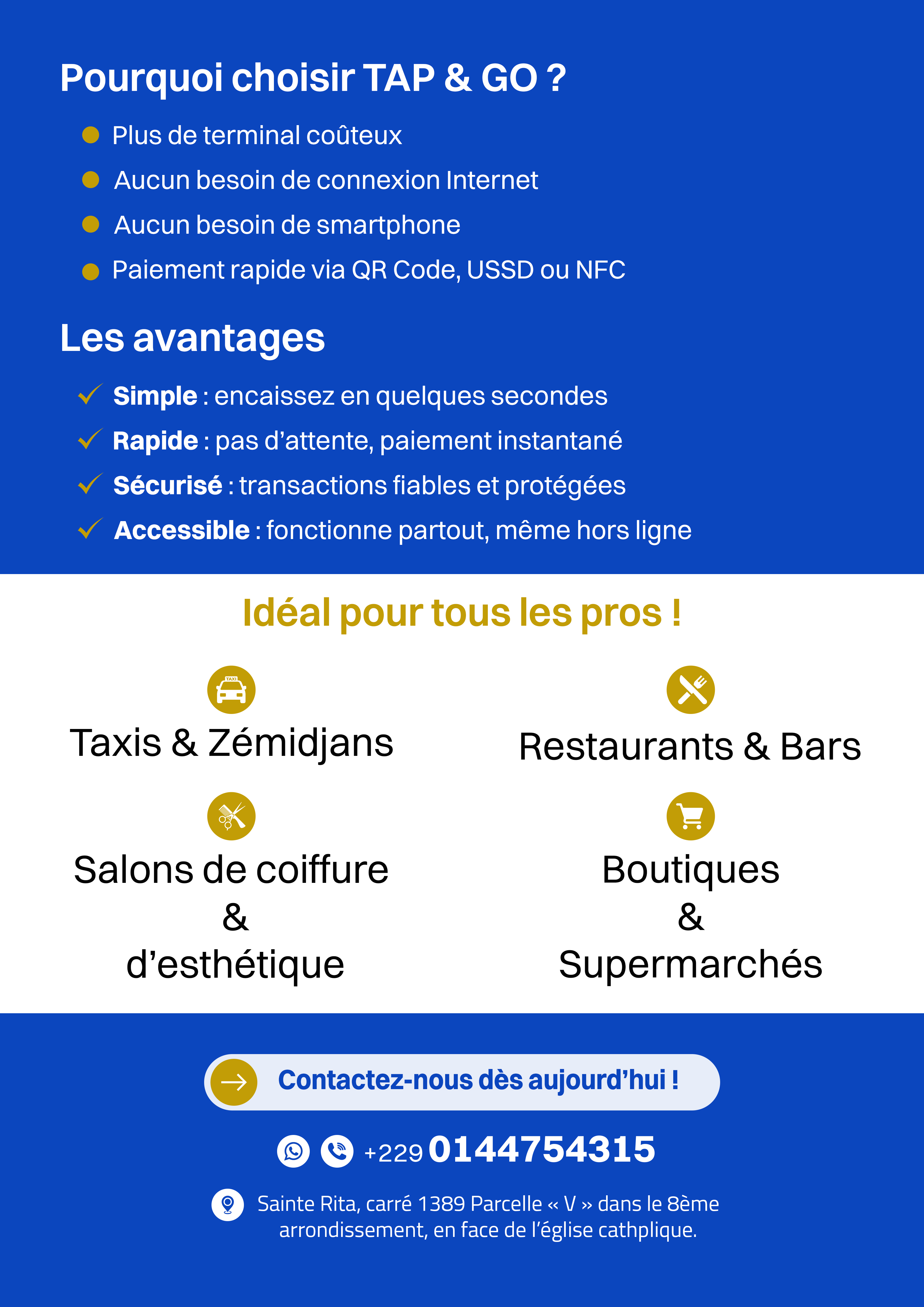 (shop, restaurant, gas station, pharmacy…)
You will be equipped with a TAP & GO Kit containing:
* A black or transparent plexiglass stand to place on the counter or stick on a storefront.
* Your personalized QR codes, USSD code, and NFC tag to receive payments.
**The onboarding process is assisted on-site by a FedaPay agent.**
**Enrollment steps:**
1- **Installation**: The agent installs the TAP & GO application on your phone
2- **Authentication**: The agent logs in using their secure credentials (Agent ID)
3- **Registration**:
* You provide a valid email address.
* You submit your KYC documents (RCCM, IFU, ID document).
4- **Validation**: FedaPay manually validates your account in the back office.
5- **Confirmation**: You receive an email or notification once your account is activated.
Daily usage:
* You collect payments via QR Code, USSD, or NFC.
* You receive a **real-time notification** for each payment.
* Check your balance and payment history in the application.
* **Funds are automatically transferred** to your Mobile Money account within 24 hours.
**3. If you are a freelancer or mobile professional**
(Zemidjan rider, tailor, technician, hairdresser…)
You receive a compact TAP & GO card, business-card size, to keep with you at all times. It contains:
* Your QR Code
* A USSD code
* The NFC tag
How do you register?
* You are assisted by a FedaPay agent to create your account.
* Enrollment is completed via the TAP & GO application.
* You provide your IFU and an ID document.
* Once your account is validated, you can start collecting payments immediately.
### About the TAP & GO application
The mobile application is:
* Exclusively installed by FedaPay agents.
* Designed for physical merchants and independent professionals.
* Allows you to:
* collect payments via QR Code, USSD, and NFC;
* track your payment history;
* check your balance in real time.
* Optimized for basic smartphones.
* Very intuitive, even for those not comfortable with technology.
Download the TAP & GO application now on Android via [this link](https://play.google.com/store/apps/details?id=com.fedapay.tapgo).
Download the TAP & GO application now on the App Store via [this link](https://apps.apple.com/app/tap-go/id6751598570).
### In case of an issue during a payment
If a customer makes a payment and the money is successfully debited but the transaction does not appear as approved in your TAP & GO application:
1- Refresh the application and wait a few minutes.
2- If the status remains unchanged, you can manually validate the transaction in the application.
3- Take a screenshot of the customer’s payment confirmation message.
4- Briefly describe the issue and submit a claim directly through the application.
(shop, restaurant, gas station, pharmacy…)
You will be equipped with a TAP & GO Kit containing:
* A black or transparent plexiglass stand to place on the counter or stick on a storefront.
* Your personalized QR codes, USSD code, and NFC tag to receive payments.
**The onboarding process is assisted on-site by a FedaPay agent.**
**Enrollment steps:**
1- **Installation**: The agent installs the TAP & GO application on your phone
2- **Authentication**: The agent logs in using their secure credentials (Agent ID)
3- **Registration**:
* You provide a valid email address.
* You submit your KYC documents (RCCM, IFU, ID document).
4- **Validation**: FedaPay manually validates your account in the back office.
5- **Confirmation**: You receive an email or notification once your account is activated.
Daily usage:
* You collect payments via QR Code, USSD, or NFC.
* You receive a **real-time notification** for each payment.
* Check your balance and payment history in the application.
* **Funds are automatically transferred** to your Mobile Money account within 24 hours.
**3. If you are a freelancer or mobile professional**
(Zemidjan rider, tailor, technician, hairdresser…)
You receive a compact TAP & GO card, business-card size, to keep with you at all times. It contains:
* Your QR Code
* A USSD code
* The NFC tag
How do you register?
* You are assisted by a FedaPay agent to create your account.
* Enrollment is completed via the TAP & GO application.
* You provide your IFU and an ID document.
* Once your account is validated, you can start collecting payments immediately.
### About the TAP & GO application
The mobile application is:
* Exclusively installed by FedaPay agents.
* Designed for physical merchants and independent professionals.
* Allows you to:
* collect payments via QR Code, USSD, and NFC;
* track your payment history;
* check your balance in real time.
* Optimized for basic smartphones.
* Very intuitive, even for those not comfortable with technology.
Download the TAP & GO application now on Android via [this link](https://play.google.com/store/apps/details?id=com.fedapay.tapgo).
Download the TAP & GO application now on the App Store via [this link](https://apps.apple.com/app/tap-go/id6751598570).
### In case of an issue during a payment
If a customer makes a payment and the money is successfully debited but the transaction does not appear as approved in your TAP & GO application:
1- Refresh the application and wait a few minutes.
2- If the status remains unchanged, you can manually validate the transaction in the application.
3- Take a screenshot of the customer’s payment confirmation message.
4- Briefly describe the issue and submit a claim directly through the application.