> ## Documentation Index
> Fetch the complete documentation index at: https://docs.fedapay.com/llms.txt
> Use this file to discover all available pages before exploring further.
# Odoo
This module allows you to add **FedaPay** as a native payment provider in your **Odoo** environment, so you can securely accept credit card and Mobile Money payments through FedaPay Checkout. It is compatible with Odoo’s eCommerce and Invoicing modules.
**Why choose FedaPay?**
* No setup fees or subscriptions
* You only pay when you receive a payment
* Automatic payouts every 3 days to your bank account or Mobile Money wallet
* Fast, reliable, and secure infrastructure
### Installation & Configuration
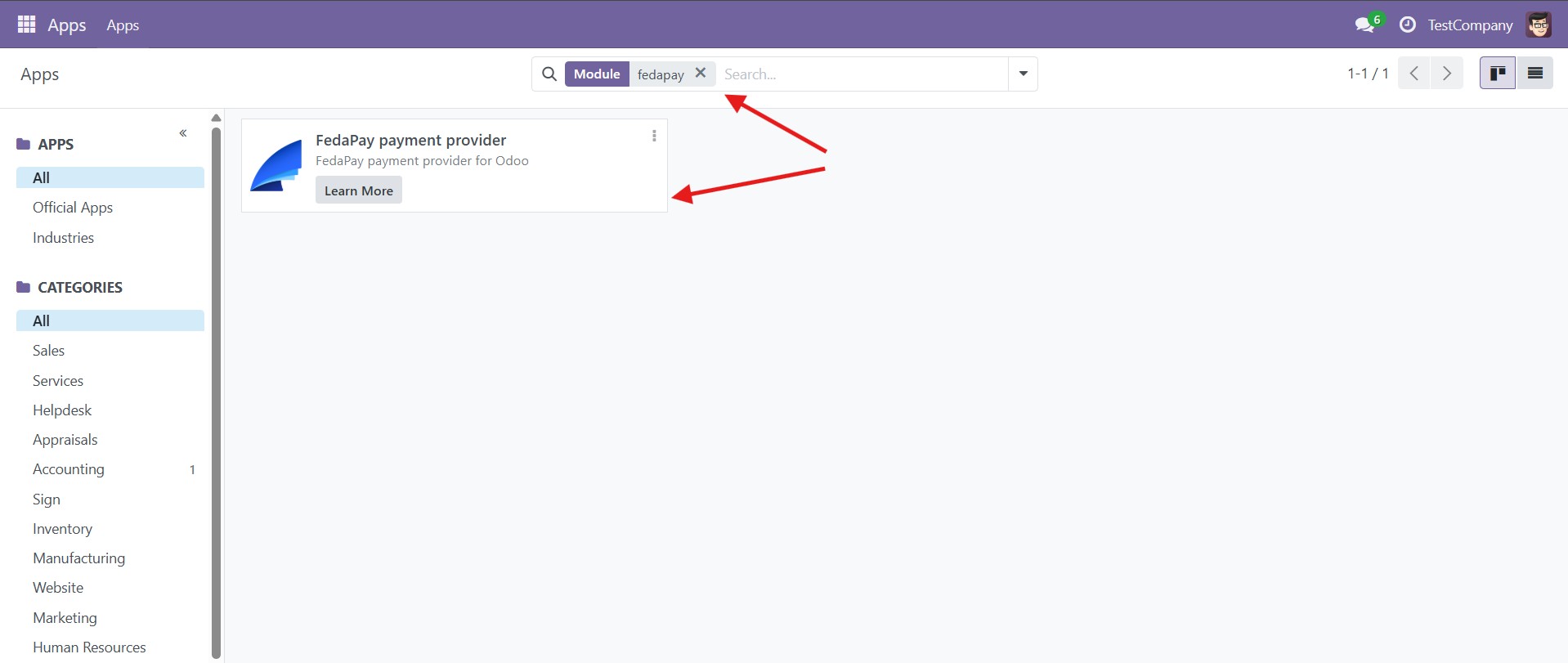
1. Install the **FedaPay Payment Provider** module
In your Odoo interface:
* Go to the Apps menu
* Search for and install the **FedaPay Payment Provider** module
* Ensure all required modules are activated (eCommerce, Invoicing)
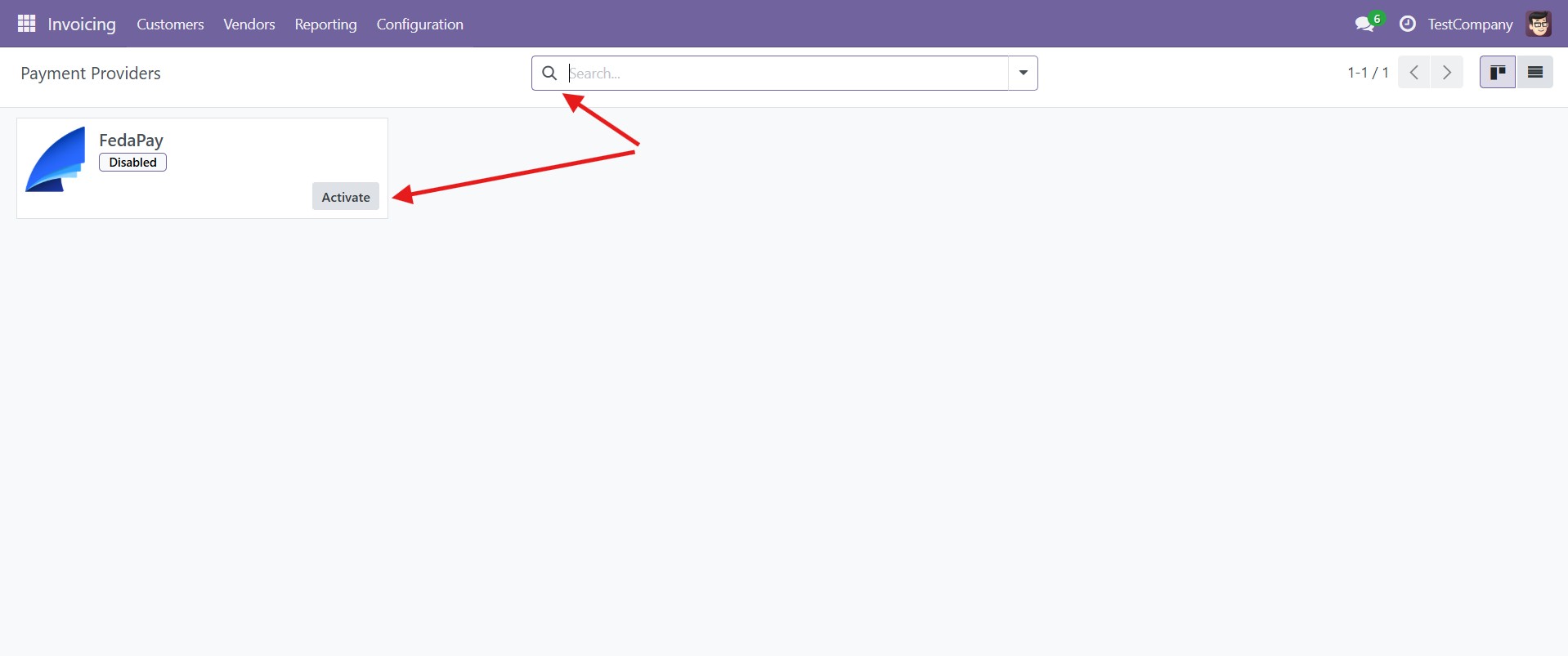
 2. Access the Payment Service Provider configuration
Depending on your use case (eCommerce or invoicing):
* Go to **Website → Configuration → Payment Providers**
or
**Invoicing → Configuration → Payment Providers**
* From the list, click on **FedaPay** to open its configuration form
2. Access the Payment Service Provider configuration
Depending on your use case (eCommerce or invoicing):
* Go to **Website → Configuration → Payment Providers**
or
**Invoicing → Configuration → Payment Providers**
* From the list, click on **FedaPay** to open its configuration form
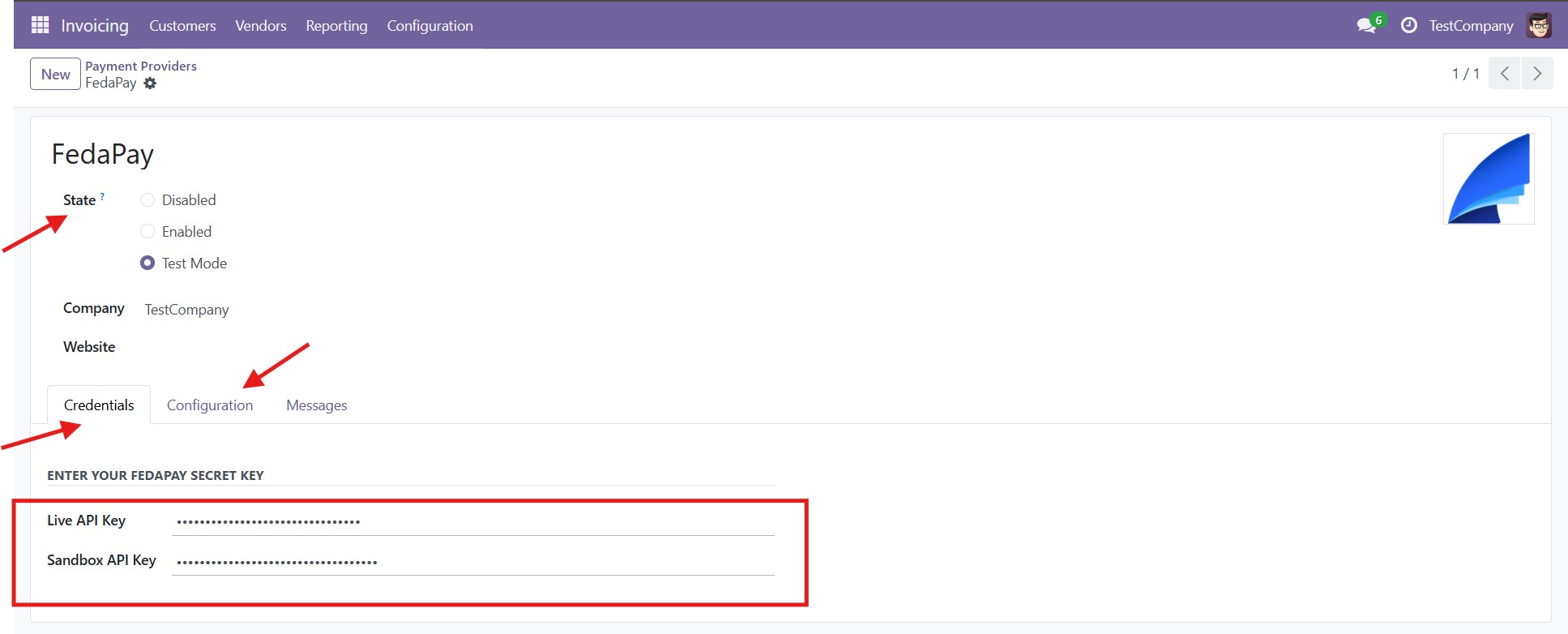
 3. Configure FedaPay in Odoo
a) Operation mode
* Test: to simulate transactions without real impact
* Live: to accept real payments
Only activate Live mode after successful testing.
b) "Credentials" tab
Enter your FedaPay API secret key based on the selected mode (Test or Live)
c) "Configuration" tab
* Select the accounting journal to associate with the transactions (e.g. Bank, Mobile Money)
* Click "**Save**" to apply your settings.
3. Configure FedaPay in Odoo
a) Operation mode
* Test: to simulate transactions without real impact
* Live: to accept real payments
Only activate Live mode after successful testing.
b) "Credentials" tab
Enter your FedaPay API secret key based on the selected mode (Test or Live)
c) "Configuration" tab
* Select the accounting journal to associate with the transactions (e.g. Bank, Mobile Money)
* Click "**Save**" to apply your settings.
 ### Demo & Use Cases
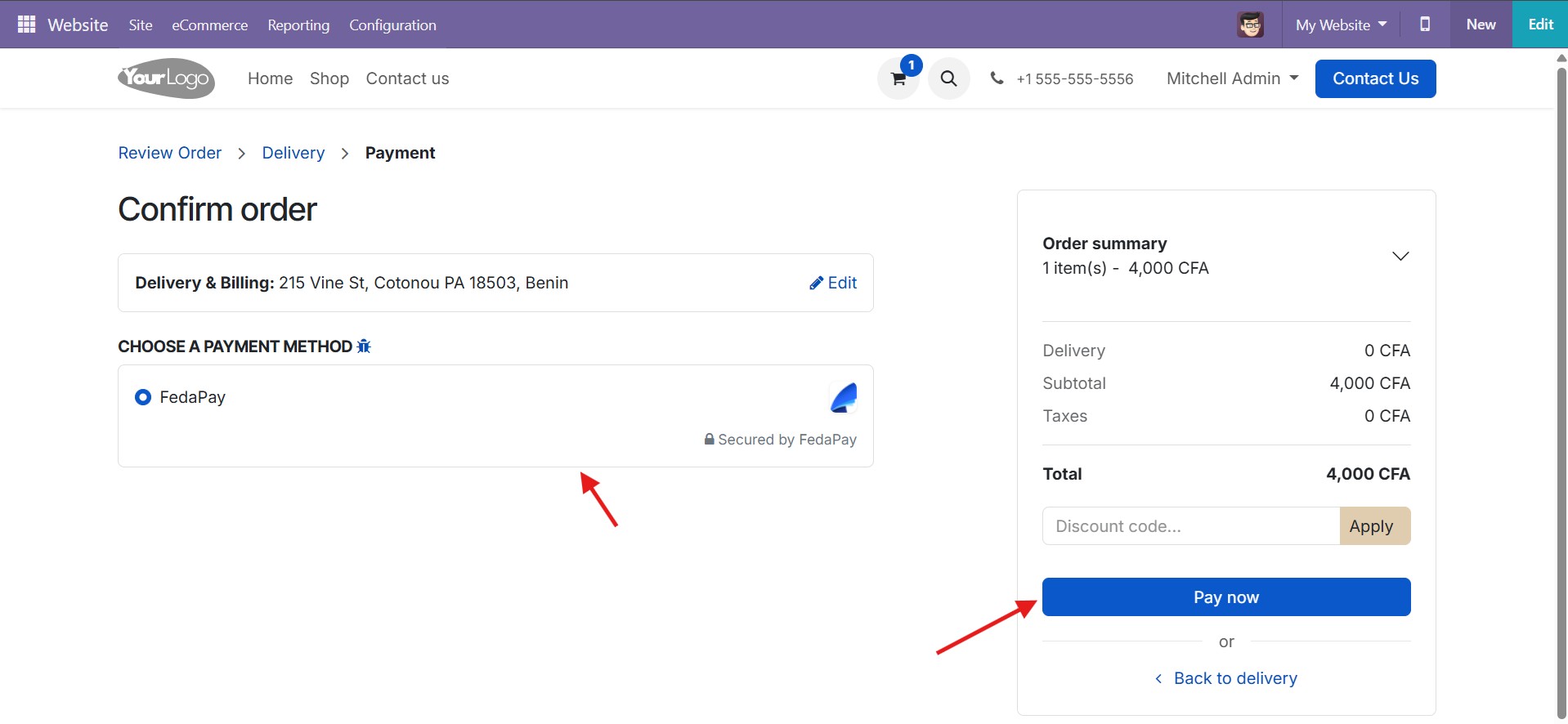
1. Payment through an Odoo eCommerce site
Once FedaPay is configured:
* The user adds products to their cart
* At checkout, FedaPay appears as an available payment method
### Demo & Use Cases
1. Payment through an Odoo eCommerce site
Once FedaPay is configured:
* The user adds products to their cart
* At checkout, FedaPay appears as an available payment method
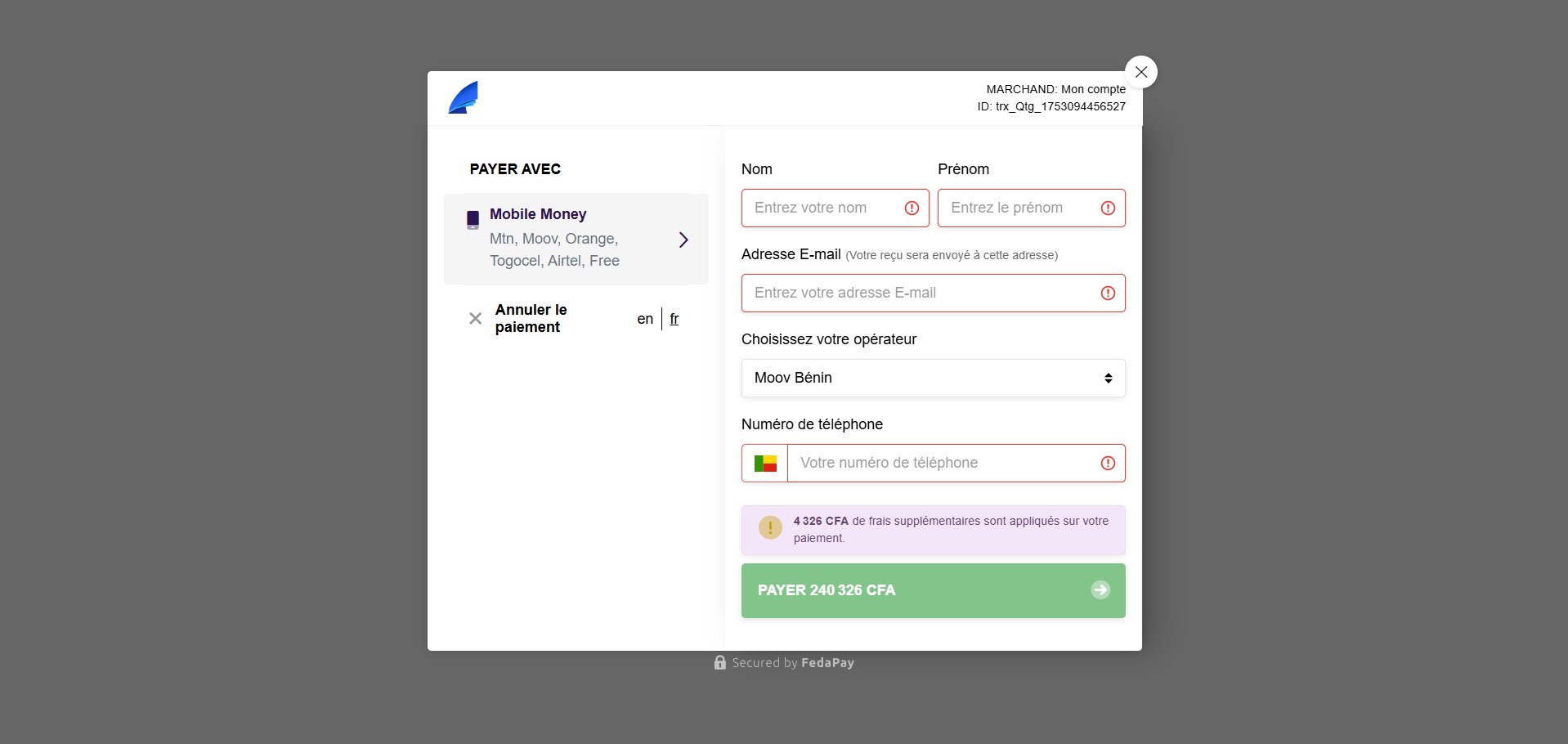
 2. Redirect to FedaPay Checkout
* The user is automatically redirected to the secure FedaPay payment page
* They enter their payment details (Mobile Money or card)
2. Redirect to FedaPay Checkout
* The user is automatically redirected to the secure FedaPay payment page
* They enter their payment details (Mobile Money or card)
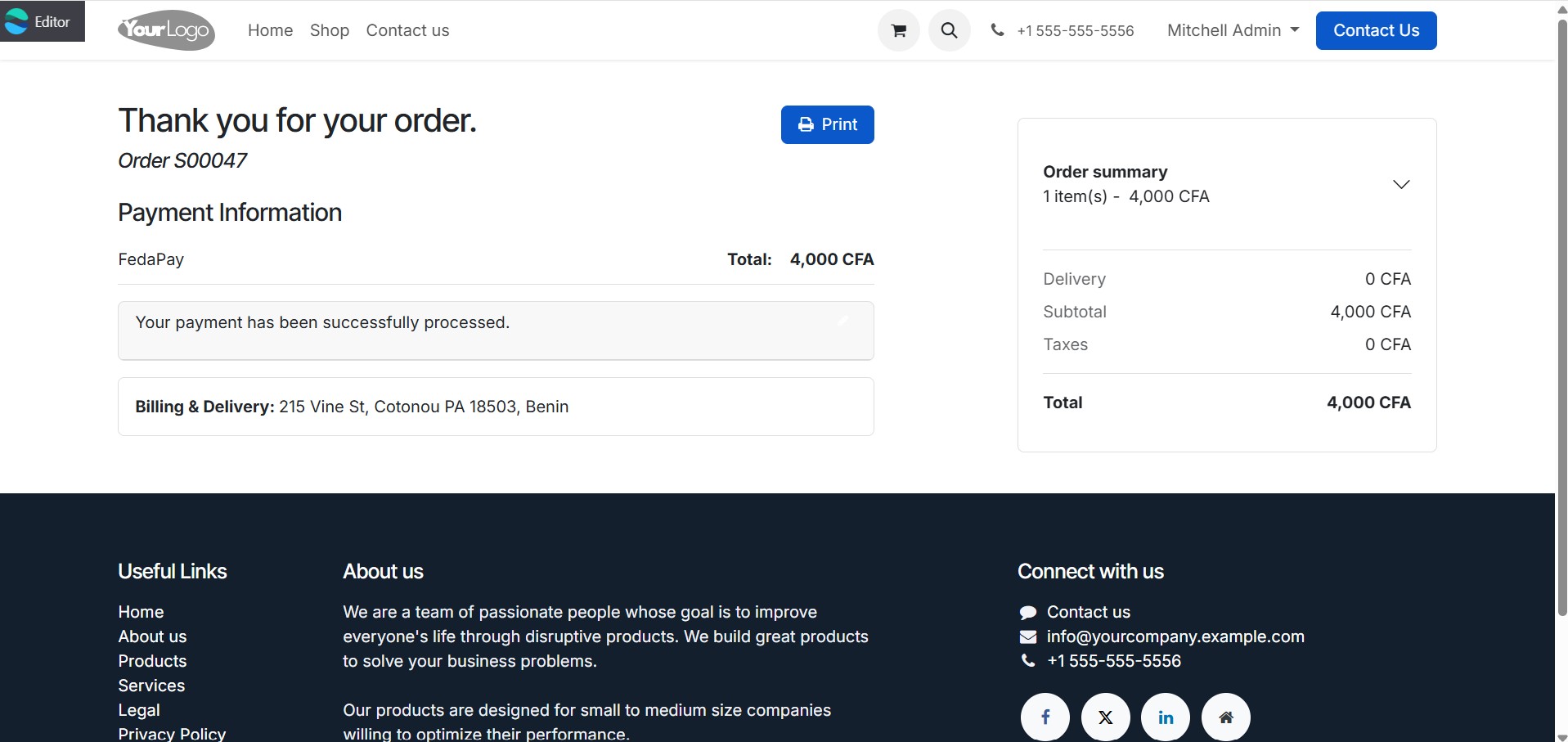
 3. Payment confirmation
After a successful transaction:
* The user is redirected back to the Odoo payment confirmation page
* The order status is automatically updated
3. Payment confirmation
After a successful transaction:
* The user is redirected back to the Odoo payment confirmation page
* The order status is automatically updated
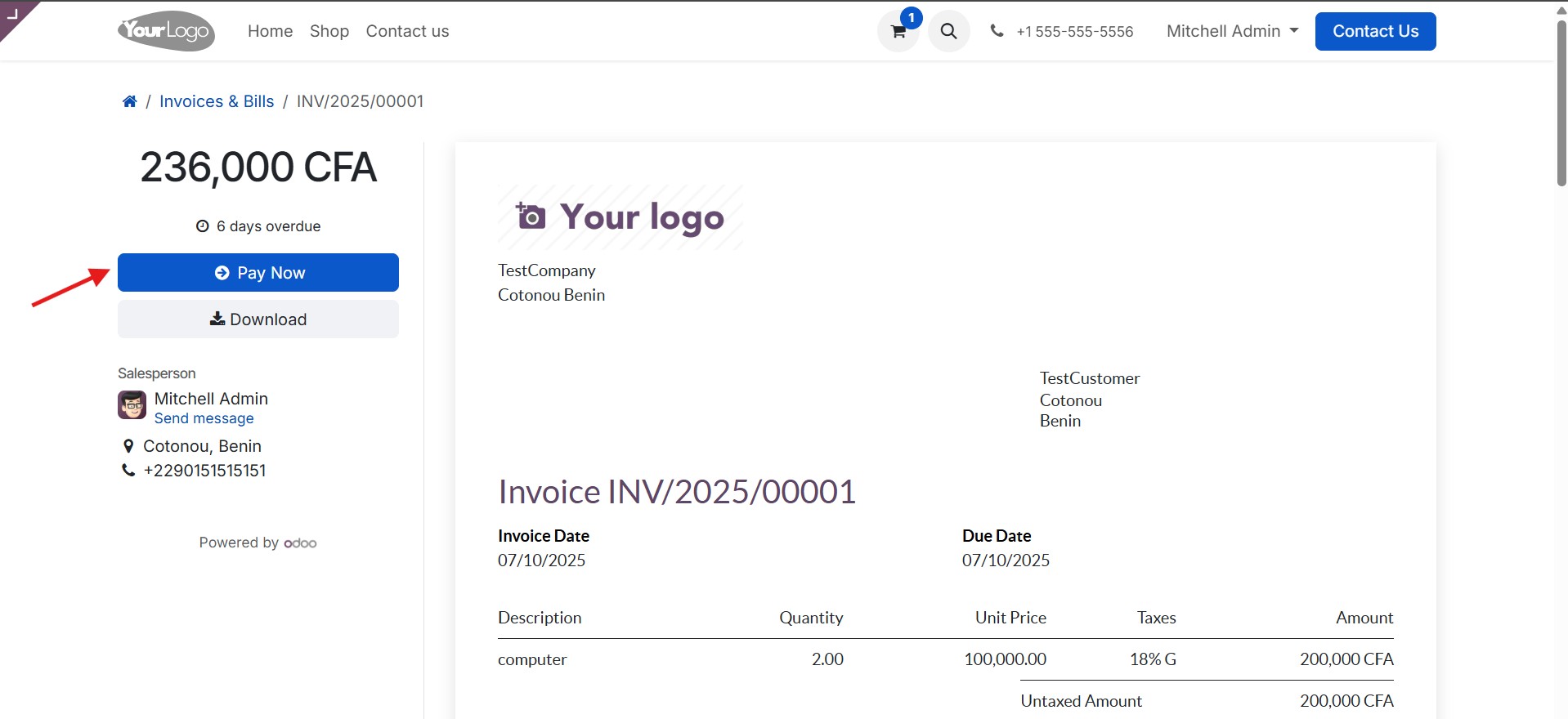
 4. Invoice payment via Sign & Pay
For invoices generated with the Invoicing module:
* The client receives a link with the **Sign & Pay** option
* They click **Pay** with FedaPay
4. Invoice payment via Sign & Pay
For invoices generated with the Invoicing module:
* The client receives a link with the **Sign & Pay** option
* They click **Pay** with FedaPay
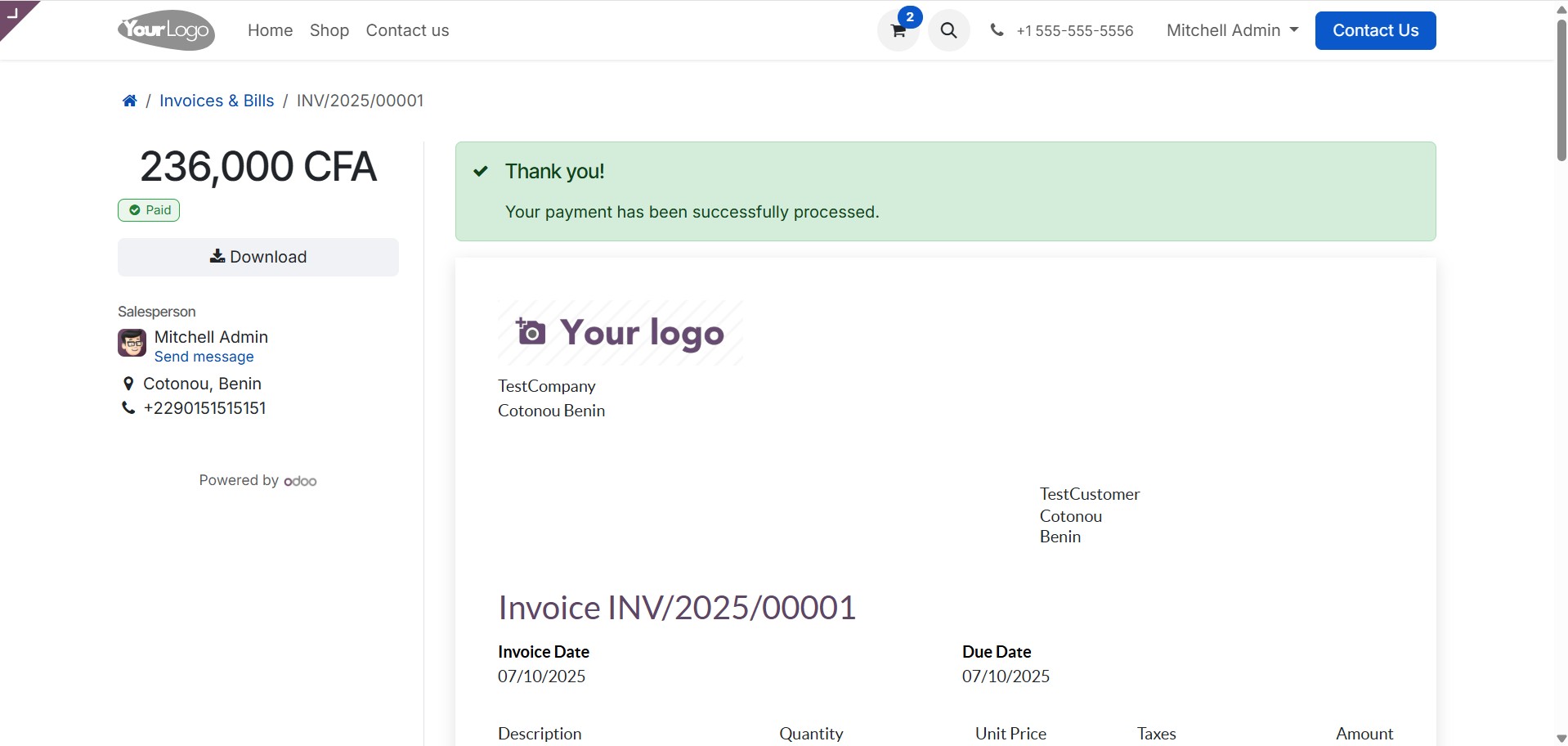
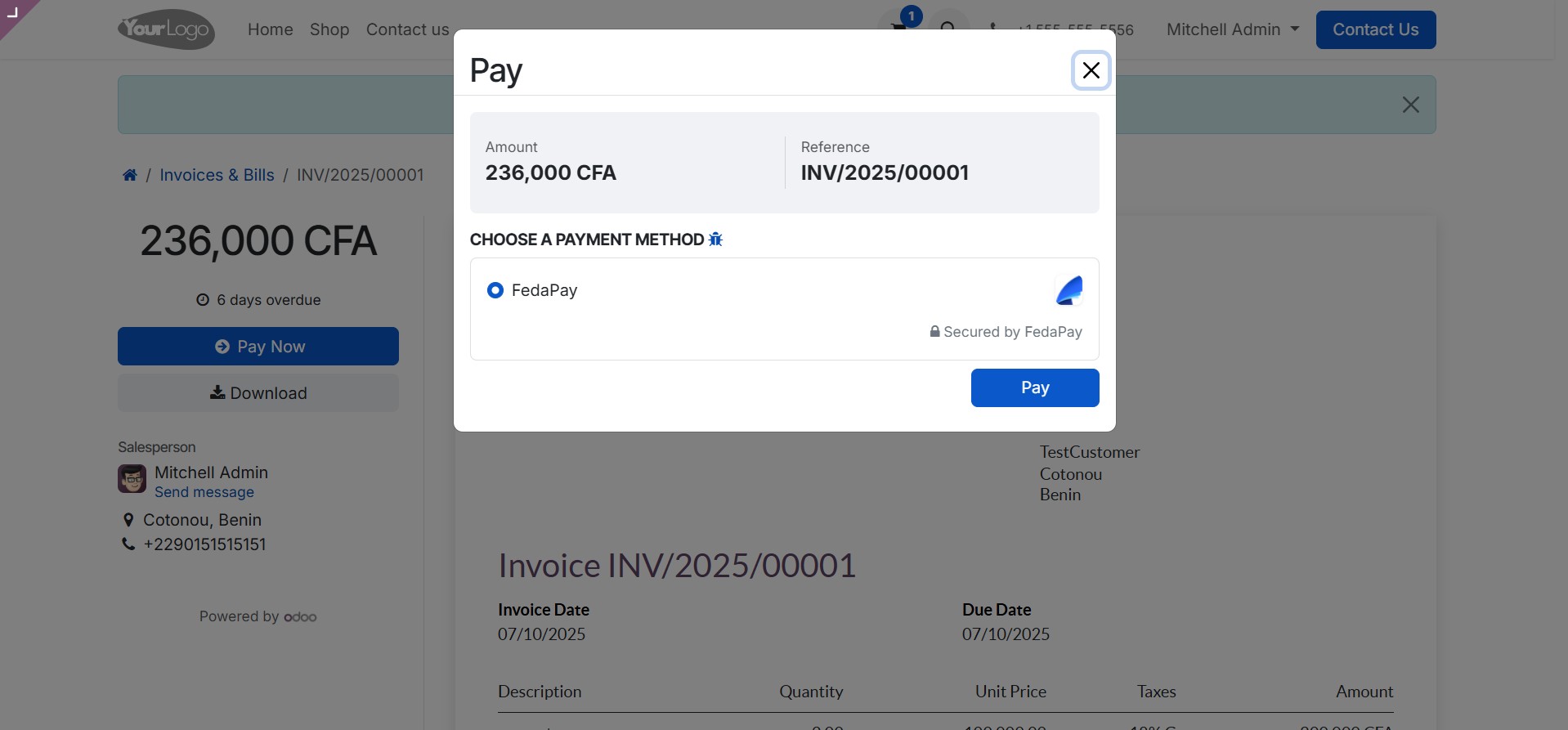 5. Processing and confirmation
* The client is redirected to FedaPay to complete the payment
* After payment, they are automatically redirected back to Odoo with confirmation
5. Processing and confirmation
* The client is redirected to FedaPay to complete the payment
* After payment, they are automatically redirected back to Odoo with confirmation
 **Best practices**:
* Enable **Webhooks** from your FedaPay dashboard for accurate payment status synchronization.
### Additional Resources
Module available on the Odoo [App Store – payment\_fedapay](https://apps.odoo.com/apps/modules/18.0/payment_fedapay)
**Best practices**:
* Enable **Webhooks** from your FedaPay dashboard for accurate payment status synchronization.
### Additional Resources
Module available on the Odoo [App Store – payment\_fedapay](https://apps.odoo.com/apps/modules/18.0/payment_fedapay)