> ## Documentation Index
> Fetch the complete documentation index at: https://docs.fedapay.com/llms.txt
> Use this file to discover all available pages before exploring further.
# Bubble
Are you using **Bubble** to build an application or website without coding? With the **FedaPay plugin**, you can easily accept payments by credit card (Visa, MasterCard) and Mobile Money in several West African countries — without redirecting your users to another page.\
Here are the steps to integrate the FedaPay plugin into your project:
### Step 1 : Install the FedaPay plugin
1- Open your **Bubble** app editor.
2- Go to the **Plugins** tab (left menu).
3- Click on **Add plugins**, then search for **FedaPay Payment Gateway**.
4- Click **Install** to add it to your app.
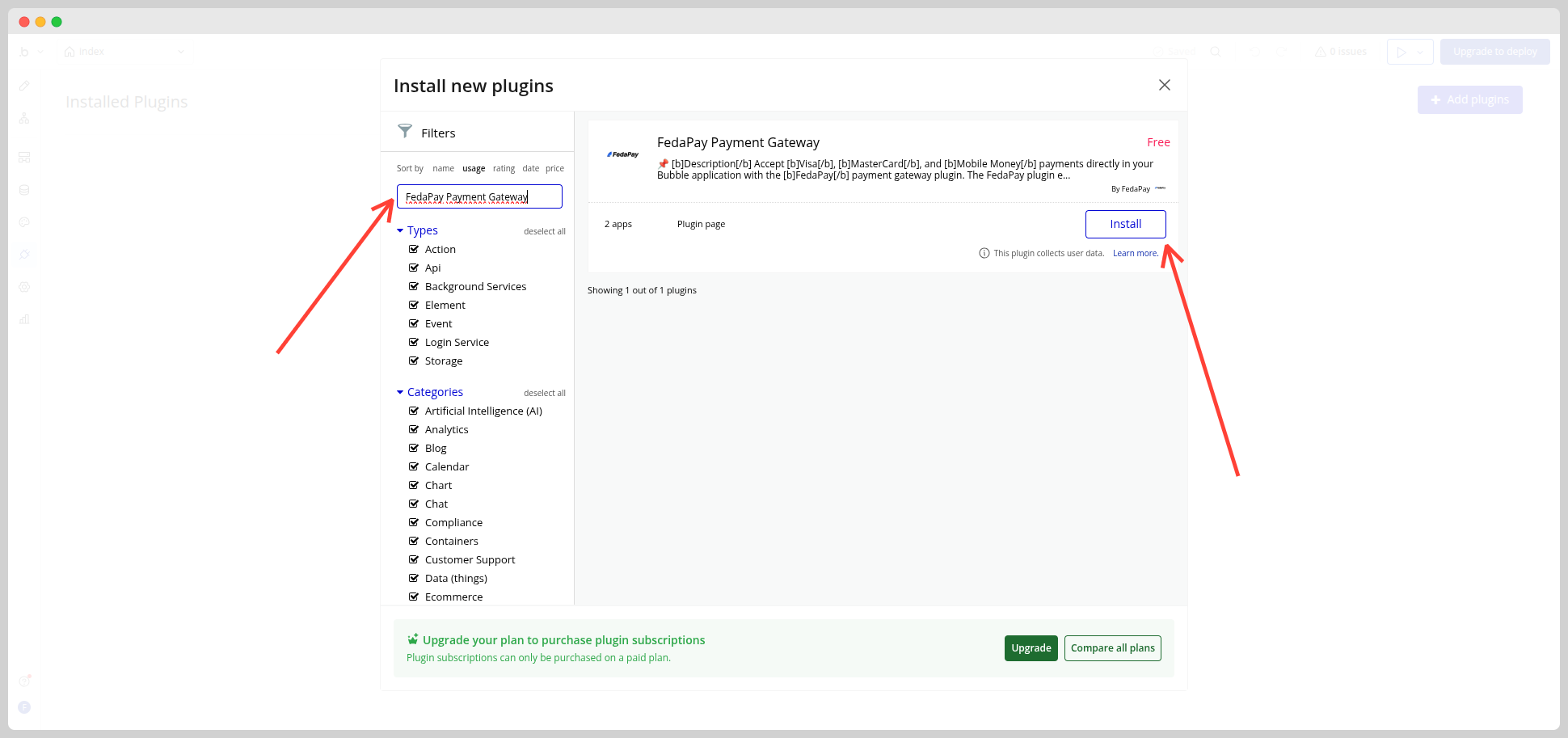
**Tip**: Once installed, you will see the plugin in the **Installed plugins** list.
### Step 2 : Configure the FedaPay API keys
1- In the **Plugins** tab, click on **FedaPay Payment Gateway**.
2- Enter your **API keys**:
* Sandbox key if you are in test mode
* Live key if you are ready to accept real payments
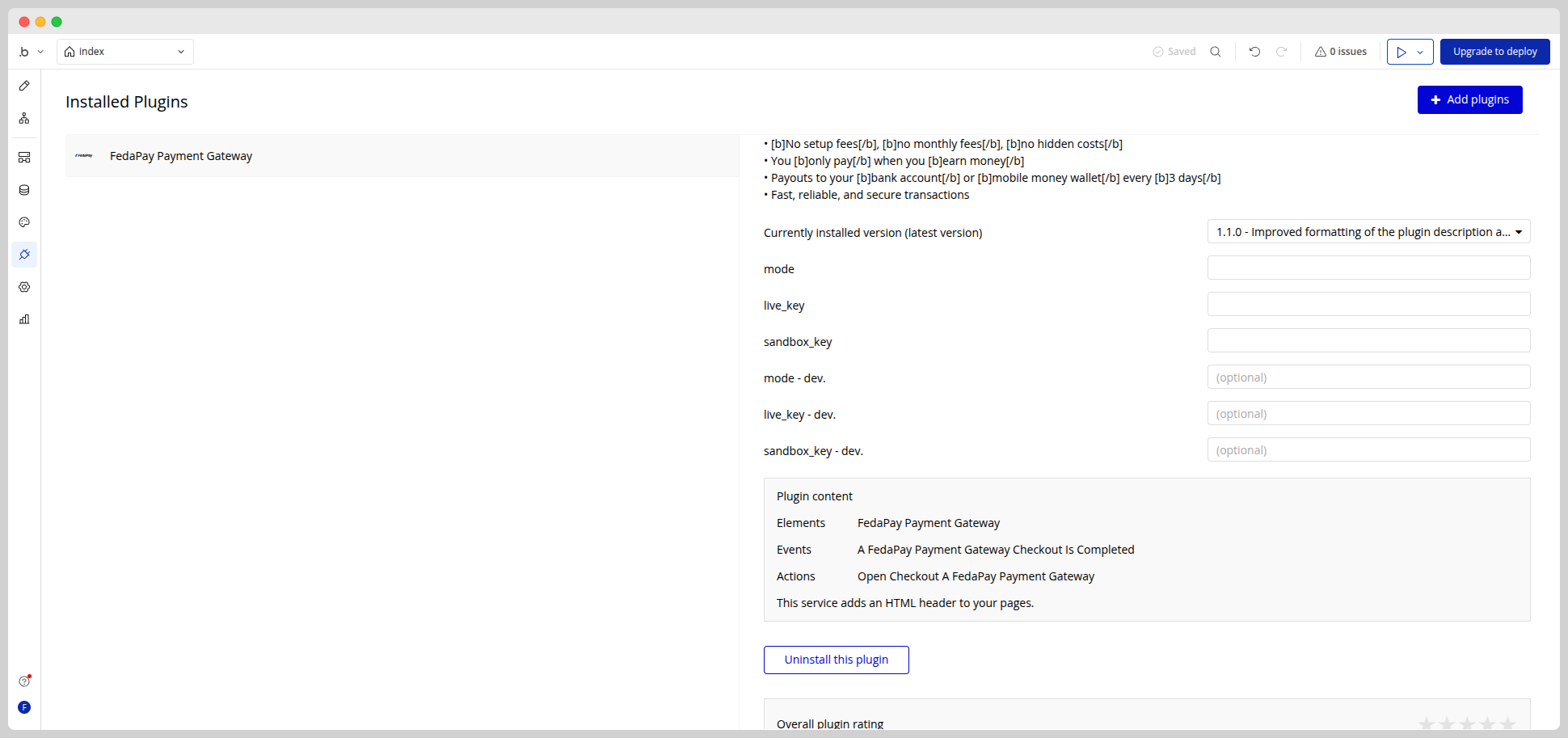
You can find your keys in [your FedaPay account](https://live.fedapay.com/login) → API Settings.
### Step 3 : Add the FedaPay element to your page
1- In Bubble’s **Design** tab, search for **FedaPay Payment Gateway** in the visual elements list.
2- Drag and drop this element anywhere on your page.
**Why is this element necessary?**\
Even if it can be invisible to your users, this element allows Bubble to trigger the payment window. **Do not delete it**.
### Step 4 : Create a button to trigger the payment
1- Add a **button** (e.g., “Pay now”) in the editor.
2- Click on it, then select **Add/Edit Workflow**.
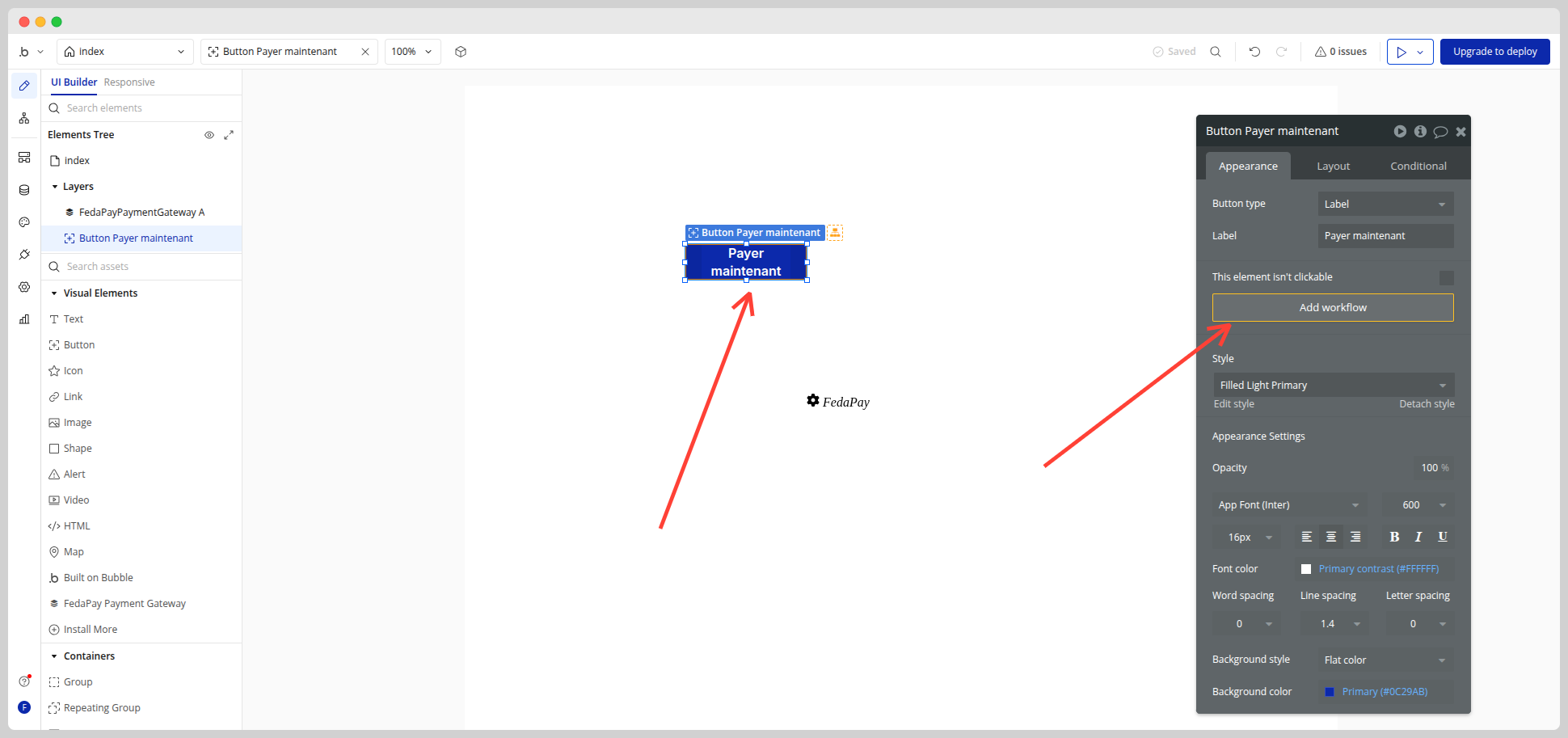
3- In the workflow, add the **Open Checkout** action (from the FedaPay element).
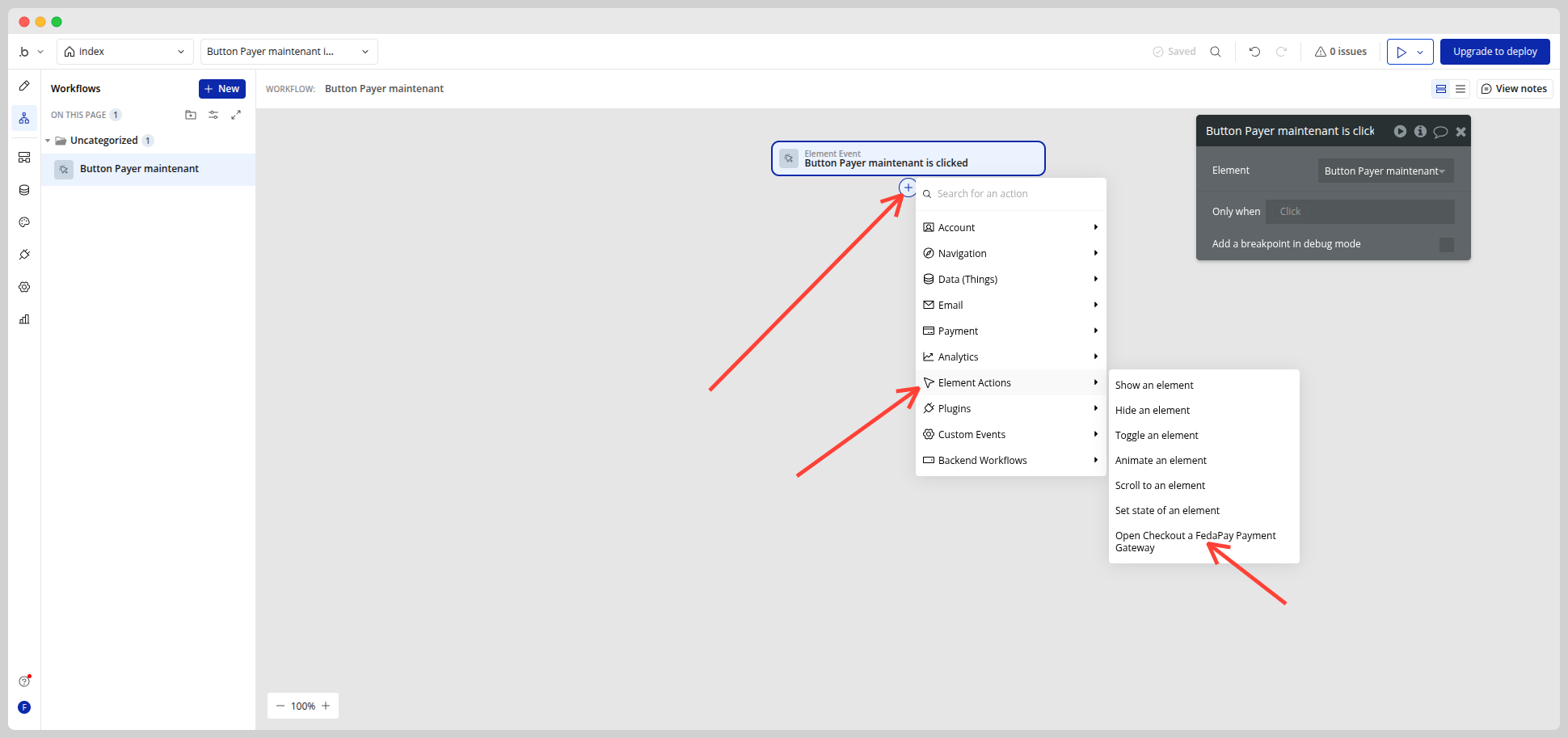
4- Fill in the fields:
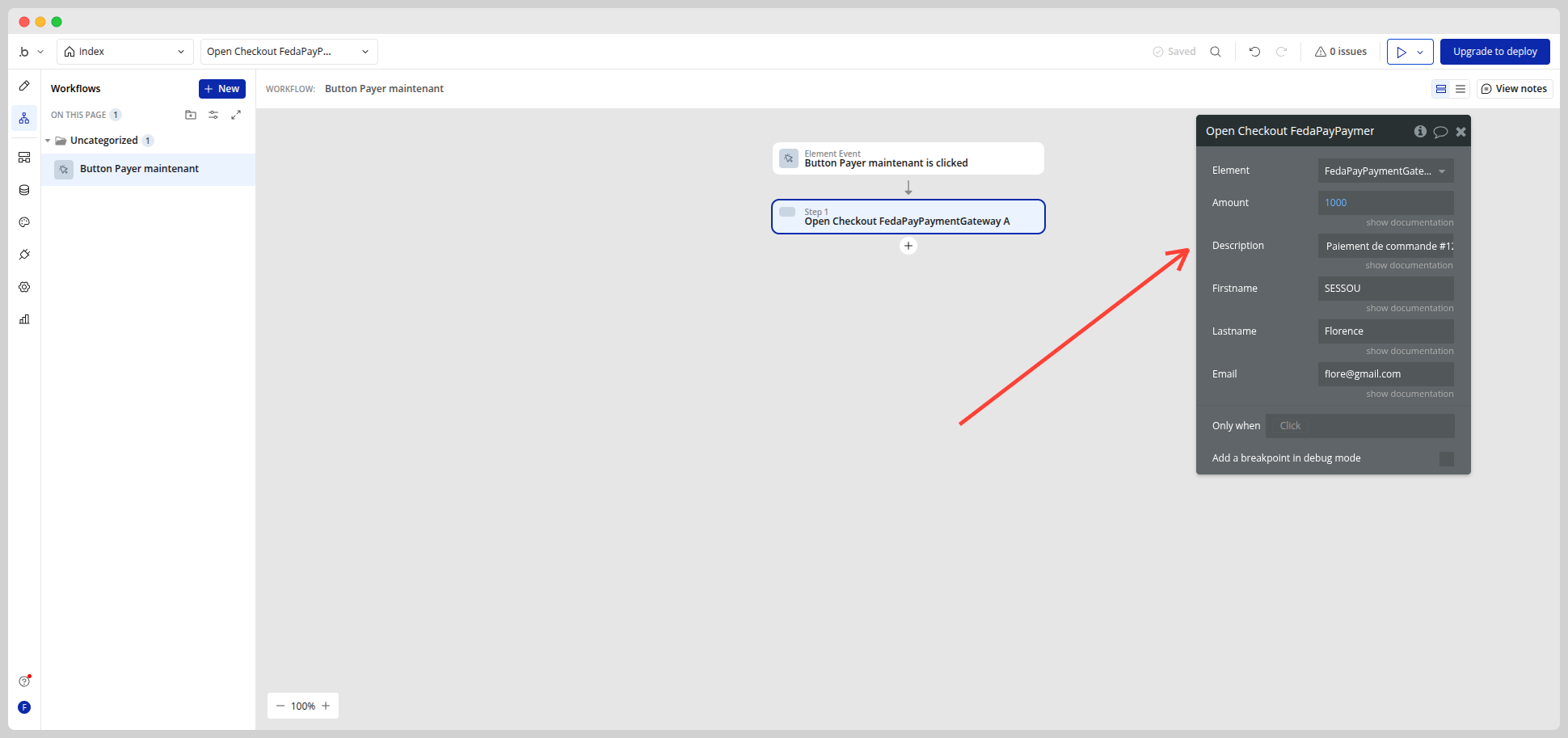
* **Amount (Required)**: the amount to pay (e.g., 1000)
* **Description (Optional)**: “Order payment #123”
* **Firstname / Lastname (Optional)**
* **Phone number** (Optional, useful for Mobile Money)
**Advice**: You can use your user form fields to automatically fill in this data.
### Step 5 : Handle payment success
Once the user completes the payment via FedaPay, the **checkout\_completed** event is automatically triggered in Bubble.
**What to do after payment?**
You can use this event in your **workflow** to:
* Save the transaction in your database
* Send a confirmation email
* Display a success message to the user
**How to configure this in Bubble?**
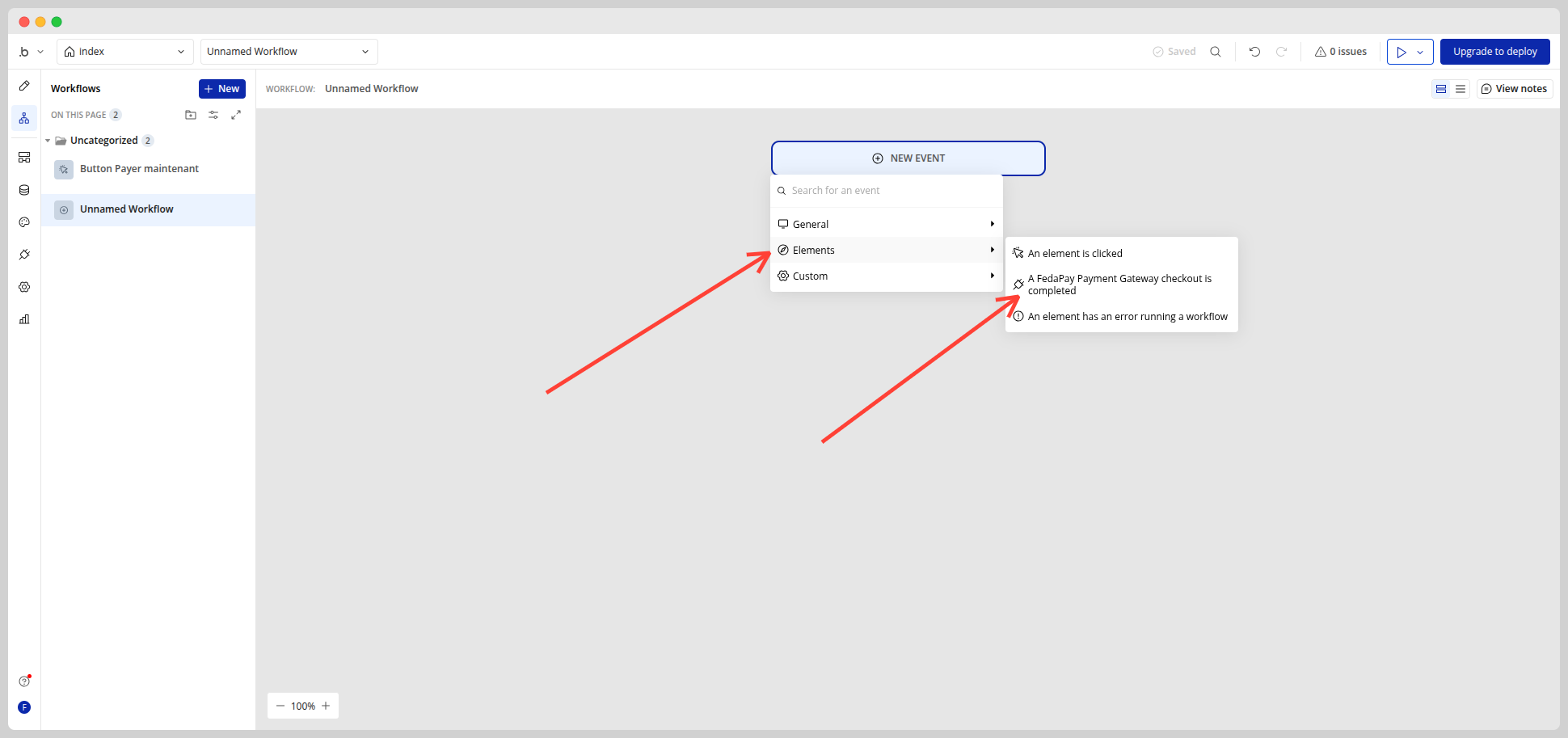
1- Go to the **Workflow** tab of your Bubble app.
2- Click the blue "**New**" button.
3- In the "**Elements**" section, select **A FedaPay Payment Gateway checkout is completed**.
**Data available after payment**:
You can retrieve this information in your workflow:
* transaction\_id
* amount
* customer\_email
* customer\_firstname
* customer\_lastname
### Step 6 : Test the plugin in a demo app
Want to see what it looks like before implementing it yourself?\
Check out the demo editor here: [Demo Application Link](http://bubble.io/page?id=payment-gateway-78241\&tab=Design\&name=index)
### About the collected data
The FedaPay plugin only collects the information entered by the user during payment (first name, last name, email).\
This data is returned to you after the payment so you can:
* Create or update a user profile
* Send a confirmation
* Perform data analysis
### Where to find the plugin in Bubble?
Click the following link: [FedaPay Payment Gateway](https://bubble.io/plugin/fedapay-payment-gateway-1744967327162x196581148574351360)