> ## Documentation Index
> Fetch the complete documentation index at: https://docs.fedapay.com/llms.txt
> Use this file to discover all available pages before exploring further.
# Create an account
FedaPay offers a simple, quick solution for managing online payments. Whether you’re an entrepreneur, an NGO, or a freelancer, FedaPay facilitates collecting payments while ensuring transaction security. Follow this guide to create and activate your account, explore FedaPay use cases, and enhance your account security.
### Create a FedaPay Account (Test or Live)
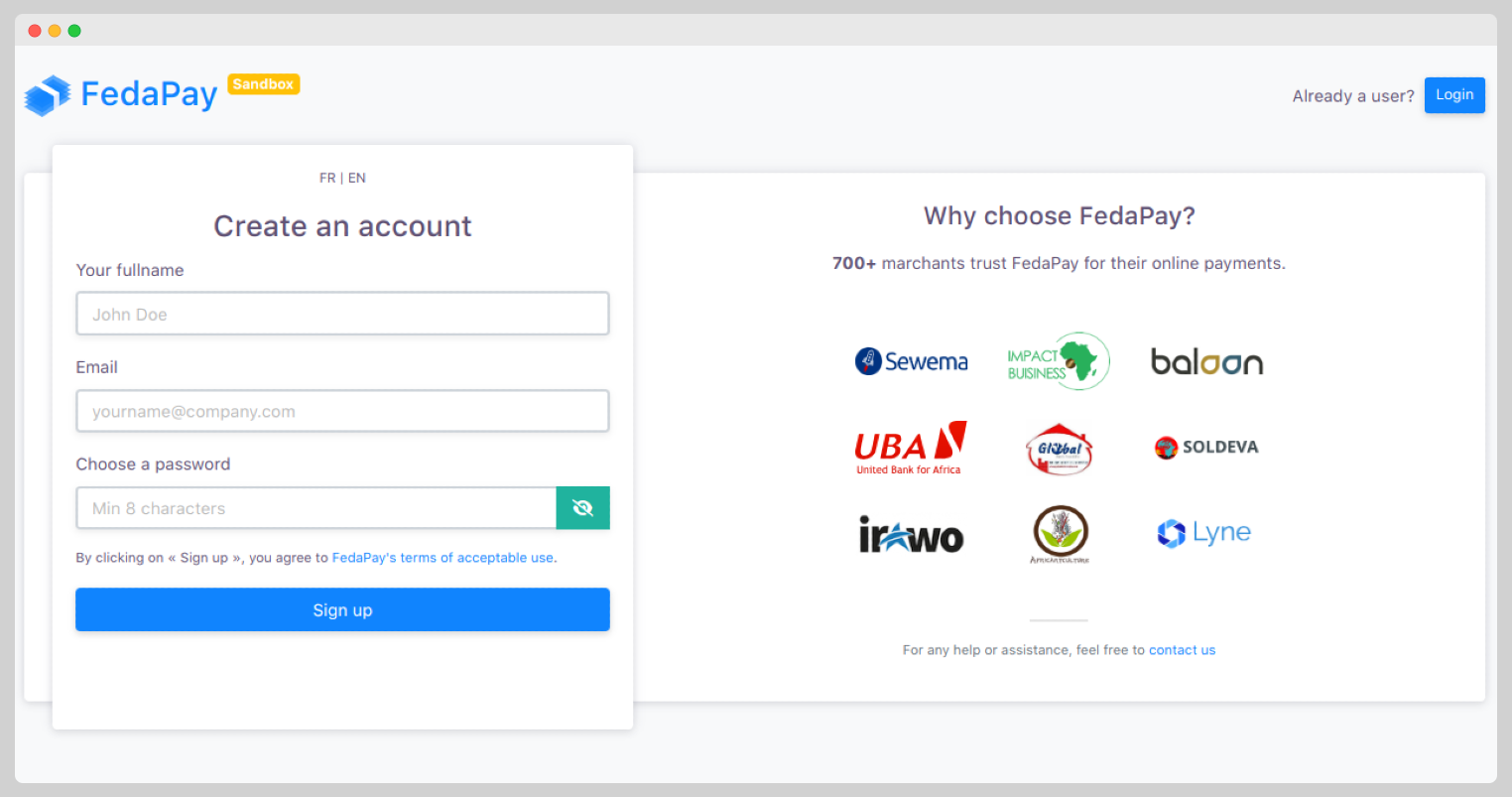
Go to the [FedaPay website ](https://www.fedapay.com) and click **Sign Up**.
Enter your basic information like name and email address.
Check your inbox for FedaPay’s confirmation email, then click the validation link (whether in test/sandbox or live mode).
Once you’ve successfully registered, you can start immediately in Test Mode to explore all the features without any real charges.
### Account Verification (for Live Accounts Only)
To accept real payments, you’ll need to activate your Live account. Here’s how to proceed:
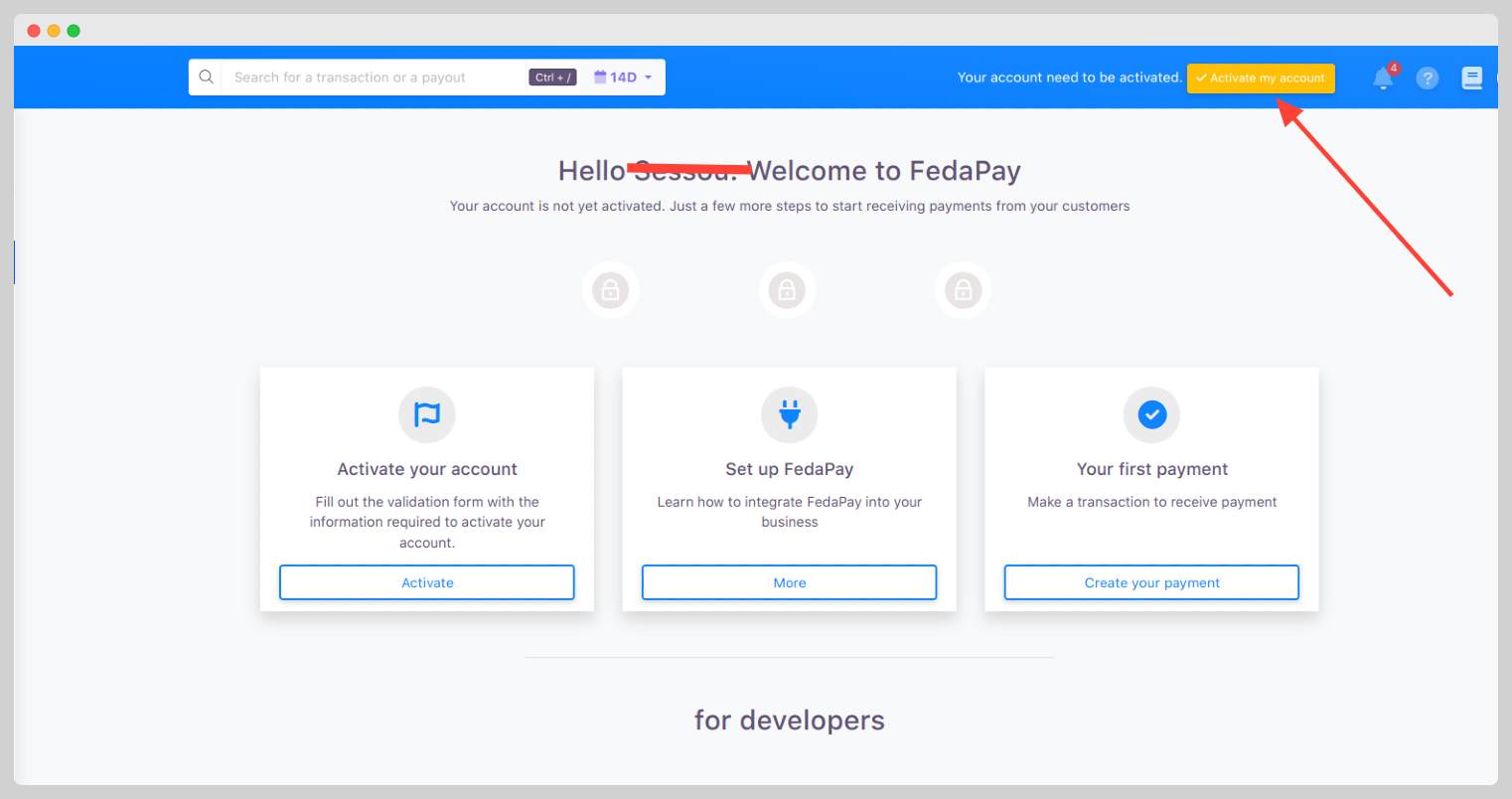
Log in to your dashboard, go to settings, and click **Activate my account**.
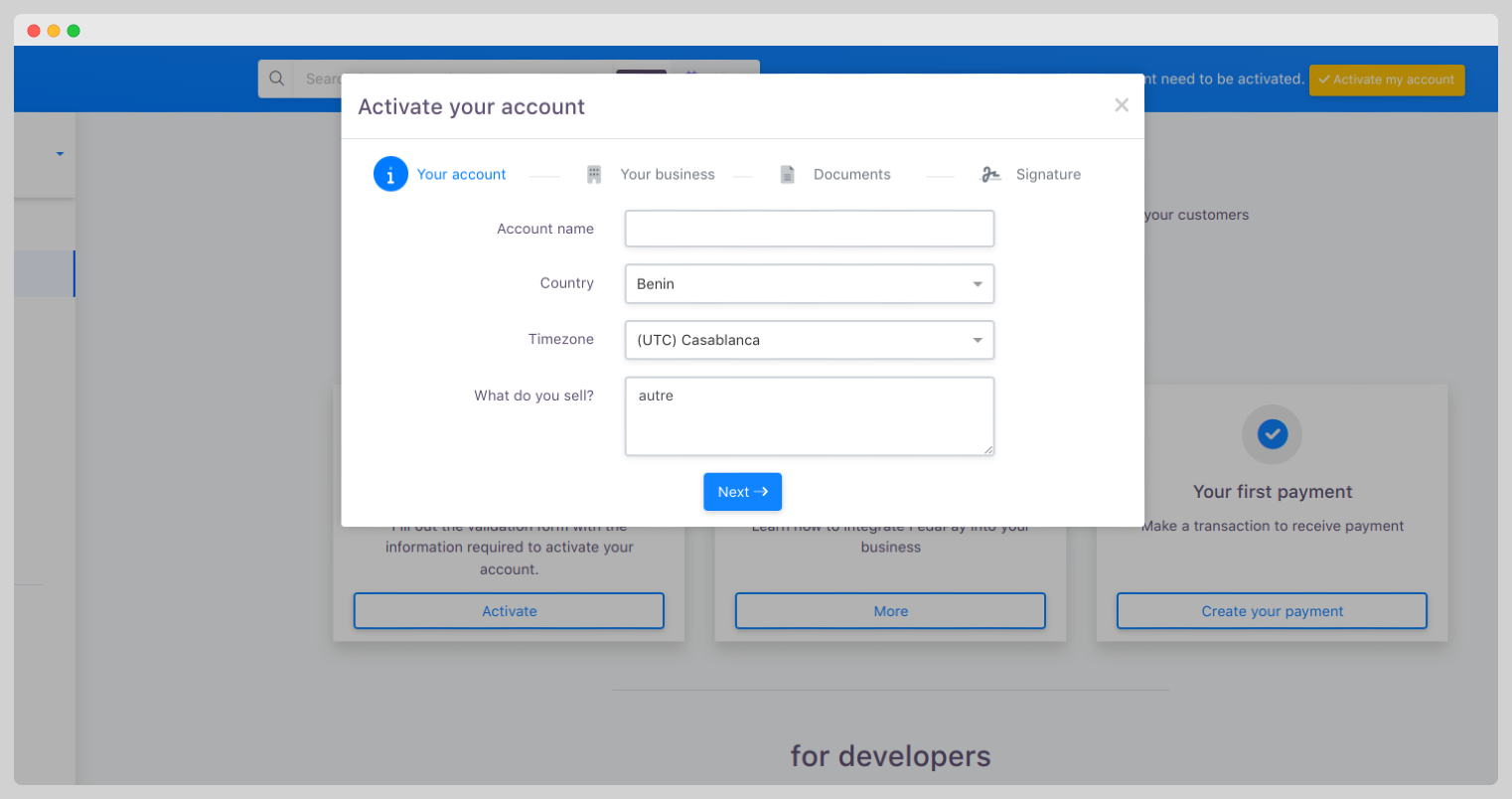
Enter your organization’s name, business sector, and upload the required documents.
[Required documents for each account type](https://docs.fedapay.com/introduction/en/compte-en)
**Note**: The FedaPay team will review your information and send you a validation notification. If any details are missing, you will be contacted to provide them.
### FedaPay Use Cases
The following examples illustrate how you can use FedaPay to collect and make payments based on your business needs:
#### Collects
***Scenario: Quickly receive payments with a payment link***
If you need to collect payments from clients without a complex technical integration, FedaPay offers a simple, effective solution. In just a few minutes, you can generate a secure payment link to send directly to your clients.
**Steps to Receive Payment via Payment Link :**
In your FedaPay dashboard, add a new client by filling in their basic information: first name, last name, and email (email is unique and essential for tracking clients). The phone number is optional.
A transaction represents the amount you expect from the client. Enter the transaction amount, add a description (required), and customize the return link after payment if necessary.
Once the transaction is created, a secure payment link is automatically generated. You can send it to the client via email, WhatsApp, SMS, or other communication channels. This link is valid for 24 hours and guarantees a secure transaction, processed by FedaPay.
**Transaction Statuses :**
* **pending** : Pending (default status upon creation)
* **approved** : Approved (payment successful)
* **declined** : Declined (insufficient funds or payment issue)
* **canceled** : Canceled (voluntary or accidental interruption by the client)
* **refunded** : Refunded (amount returned to the client)
* **transferred** : Transferred (amount sent to the merchant’s account)
#### Payouts
***Scenario: How an online betting company payouts winnings to a client ?***
For payout of winnings, online betting companies can use FedaPay to facilitate payouts to clients. This process simplifies payment transfers, offering clients a secure, quick experience.
**Steps to Make a Payout to a Client :**
In the FedaPay dashboard, the betting company creates a payout for the winning client, specifying the payout amount and the client’s destination account.
After the payout is created, its initial status is **pending**. Once the deposit request is validated, the status changes to **started**, indicating that the transfer is being prepared.
FedaPay begins processing the payout. At this stage, the status changes to **processing**, indicating the transfer is being finalized.
Once the payout is completed, the status changes to sent, confirming that the client has received their payout.
If the payout fails (technical error or issue with the payout method), the status changes to **failed**. In this case, resolution actions can be taken to complete the payment transfer.
**Payout Statuses:**
* **pending** : Pending (initial status after payout creation)
* **started** : Started (payout has been validated)
* **processing** : In Progress (payout in process)
* **sent** : Sent (payout successfully made)
* **failed** : Failed (payout was not successful due to an error)
### Security: Two-Factor Authentication (2FA)
Security is a priority at FedaPay, which is why we offer two-factor authentication (2FA) to protect your account and transactions. Enabling 2FA adds an additional layer of security by requiring a unique authentication code in addition to your password.
**How to Enable 2FA :**
* Go to your dashboard and open **security settings**.
* Click on **Enable 2FA**.
* Follow the instructions to link your account to an authenticator app like Google Authenticator.
* Each time you log in, you’ll need to enter a unique code generated by your 2FA app.
***Security Tip: Use a complex, unique password for your FedaPay account, and avoid sharing it.***
### Ready to Get Started?
Sign up today to discover the benefits of FedaPay and simplify your online payments. Whether you’re a freelancer, an NGO, or a business, FedaPay is the ideal tool for securely managing your transactions.
[Create a FedaPay Account Now](https://fedapay.com)