> ## Documentation Index
> Fetch the complete documentation index at: https://docs.fedapay.com/llms.txt
> Use this file to discover all available pages before exploring further.
# Refunds: Tracking and Filtering
In the **Refunds** section, find details about your refunds, such as:
* **Refund Amount**
* **Beneficiary**
* **Status**
* **Refund Date and Creation Date**
#### How to initiate a refund?
To process a refund from your FedaPay merchant dashboard, follow these steps:
If the status is **Approved/transferred**, you can proceed with the refund.
* The customer's email address
* A description of the refund
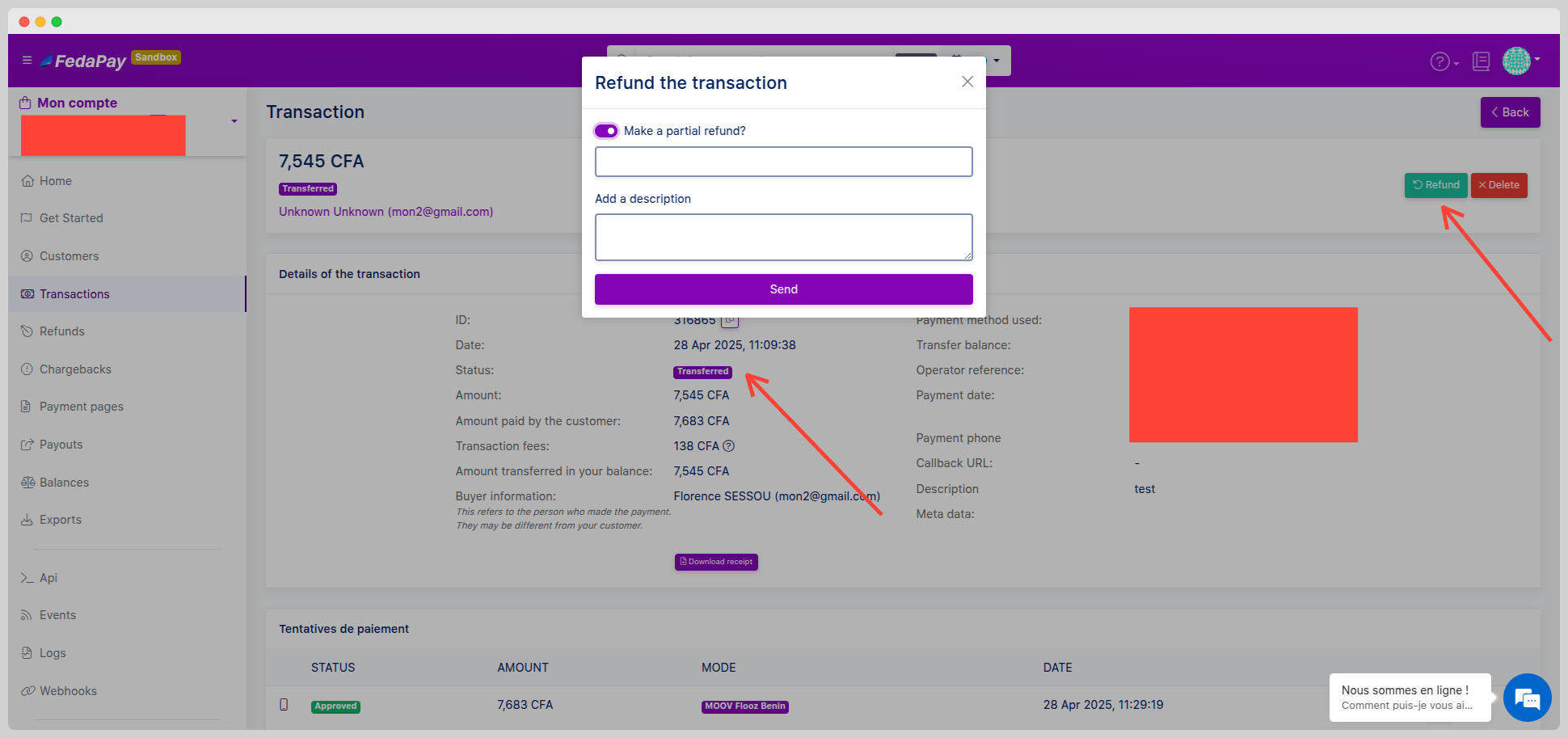 ***Important note*** : Refunds can only be processed via **MTN Mobile Money**.
You can also filter your refunds based on your needs by clicking **Filter**, selecting your criteria (ID, reference, amount, status, payment number, etc.), and then clicking **Send**. Additionally, you can **export the data in CSV format** for further analysis.
***Important note*** : Refunds can only be processed via **MTN Mobile Money**.
You can also filter your refunds based on your needs by clicking **Filter**, selecting your criteria (ID, reference, amount, status, payment number, etc.), and then clicking **Send**. Additionally, you can **export the data in CSV format** for further analysis.